Create Azure OpenAI Service
To use the Azure OpenAI Service, you must create the required service within your own Azure resource. This is essential to ensure the security of your data and to keep costs fully transparent and under your control.
The setup takes place outside of Business Central. Since navigating the Azure Portal can quickly become complex, this guide walks you through each step clearly and precisely.
Prerequisites
What you need before you start
- A Microsoft Azure account with admin permissions
- An active Azure Subscription already configured in your Azure account
Part 1: Create the Azure OpenAI Resource
Step 1: Open the Azure Portal
Navigate to the Azure OpenAI section of the Azure Portal: Azure OpenAI in Azure Portal
Step 2: Create a New Resource
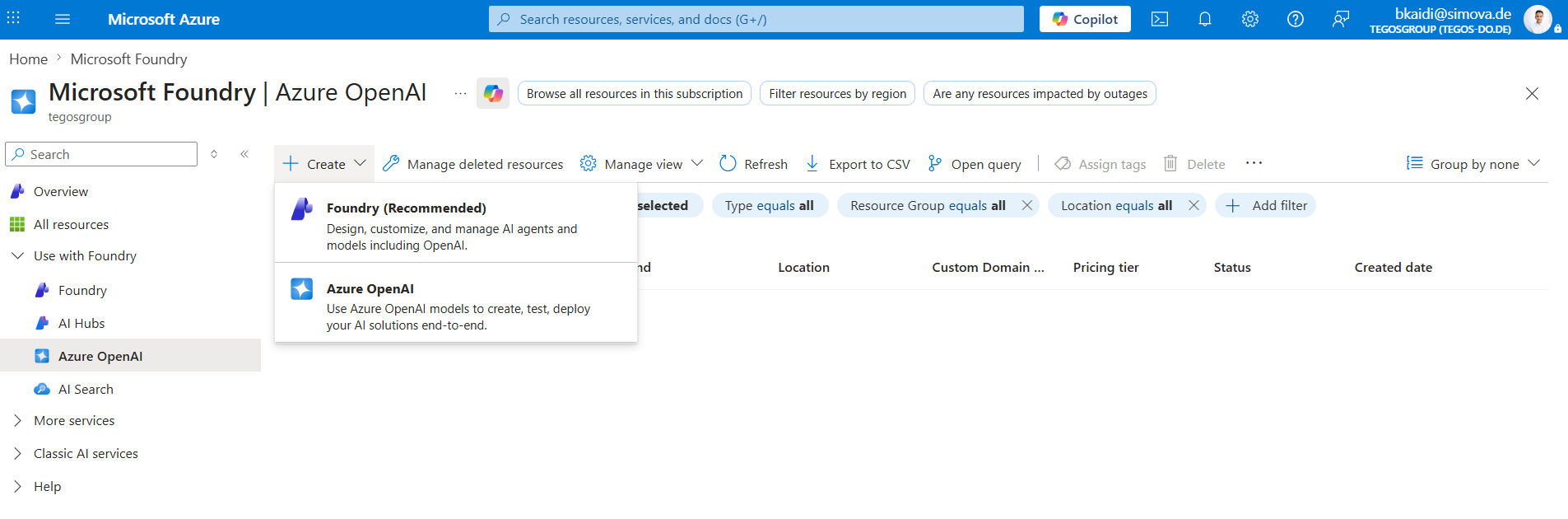
Click "Create" and select Azure OpenAI from the list.
Microsoft's official documentation
Microsoft provides comprehensive documentation for this creation process. If you're unsure about any options, refer to it here: Create an Azure OpenAI resource
Work through the wizard and complete the resource creation.
Part 2: Set Up Microsoft Foundry
To connect your Azure OpenAI resource to Business Central, you need a Microsoft Foundry project.
Don't have a Foundry project yet? Expand this section
Create a Foundry Project
- Navigate to the Microsoft AI Foundry Portal
Disable the New Foundry toggle
Make sure the "New Foundry" toggle is switched off. Not all required features are available in the new Foundry yet.
- Click "Create New"
- Select the recommended option "Microsoft Foundry resource" and click Next
-
Create a new project with a meaningful, company-specific name, for example:
Simova-Foundry
If no suitable resource exists yet, create one directly within this wizard.
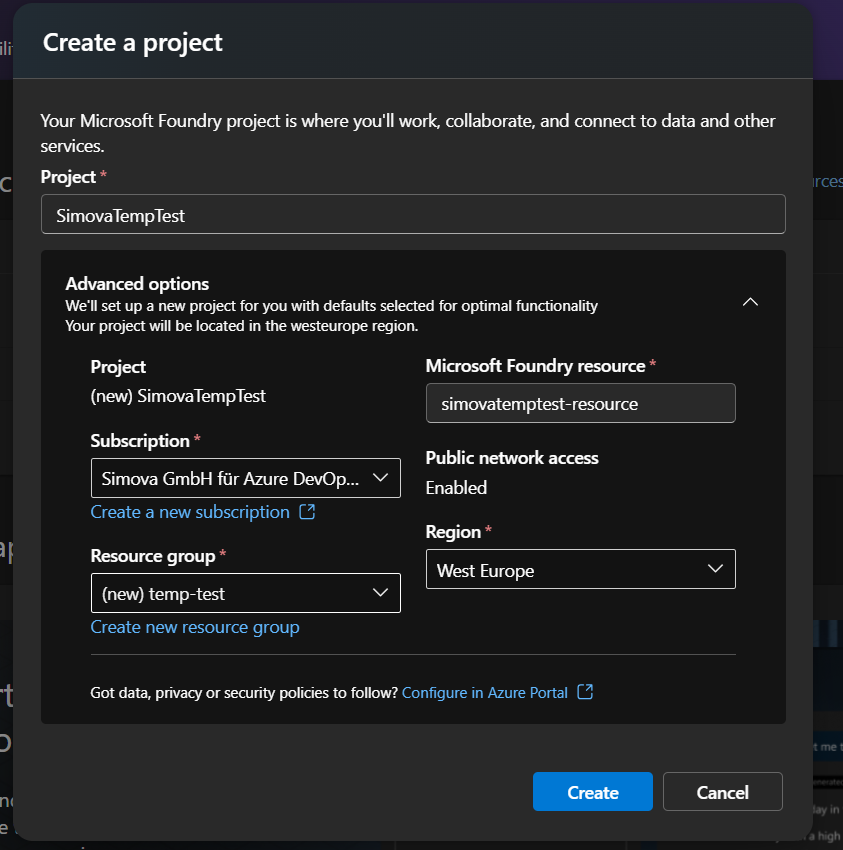
- Click Create and wait for the provisioning to complete.
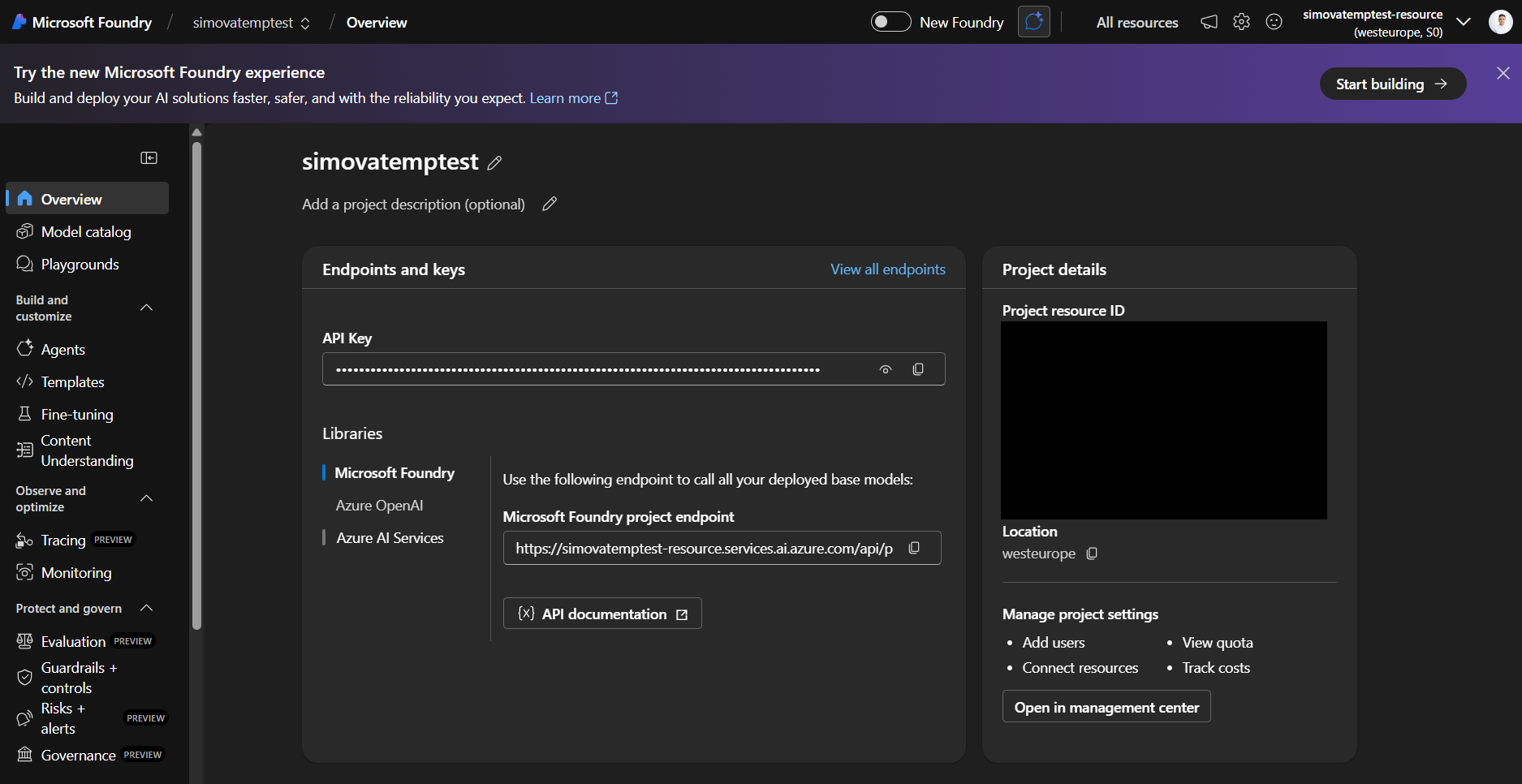
Step 3: Open Your Foundry Project
Once the project is ready, navigate into it by clicking on the project name.
Step 4: Open the Management Center
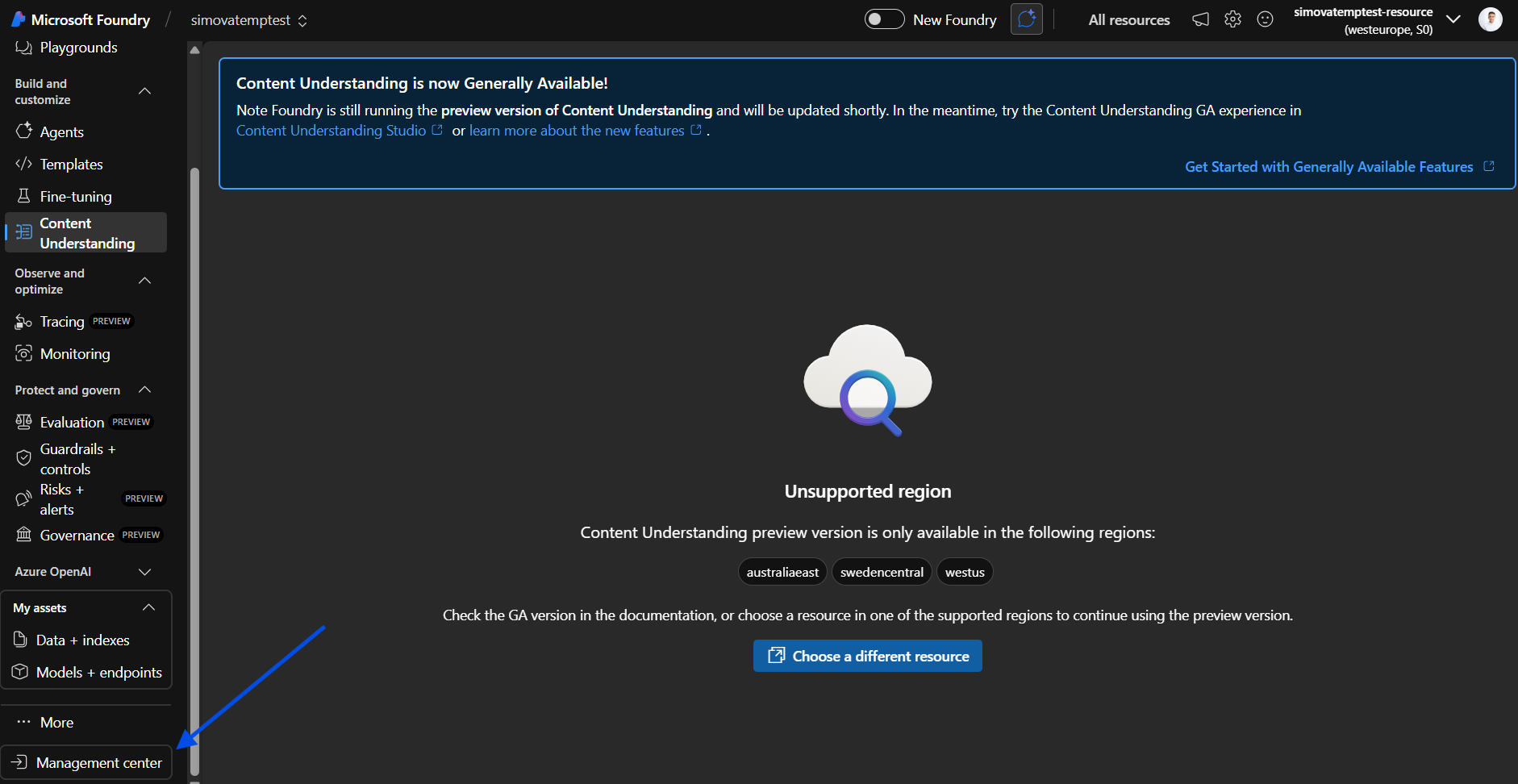
On the left-hand side, in the bottom corner, locate and click "Management center".
Step 5: Add a New Connection
- Navigate to Connected Resources
- Click "New Connection"
- Select Azure OpenAI from the connection type list
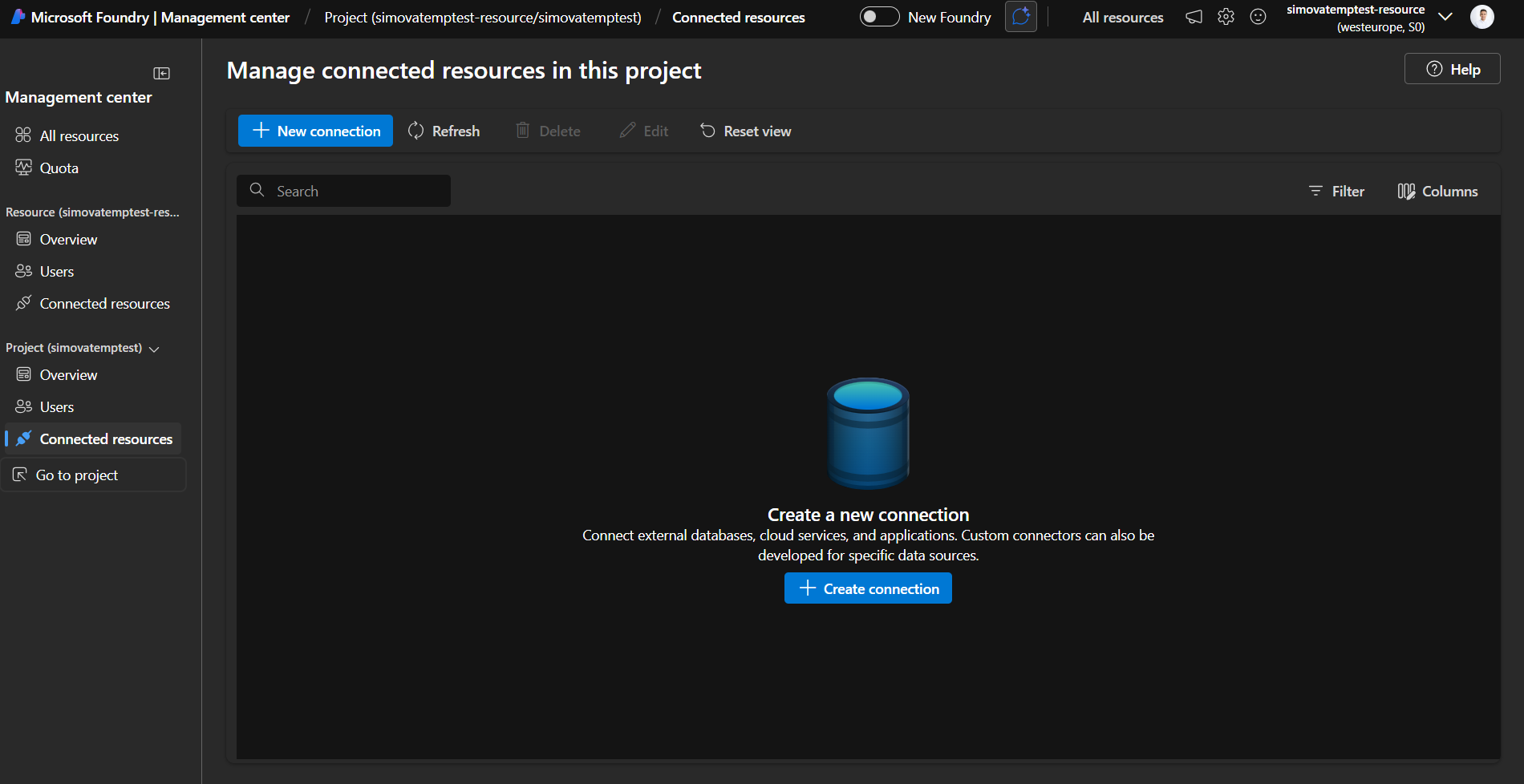
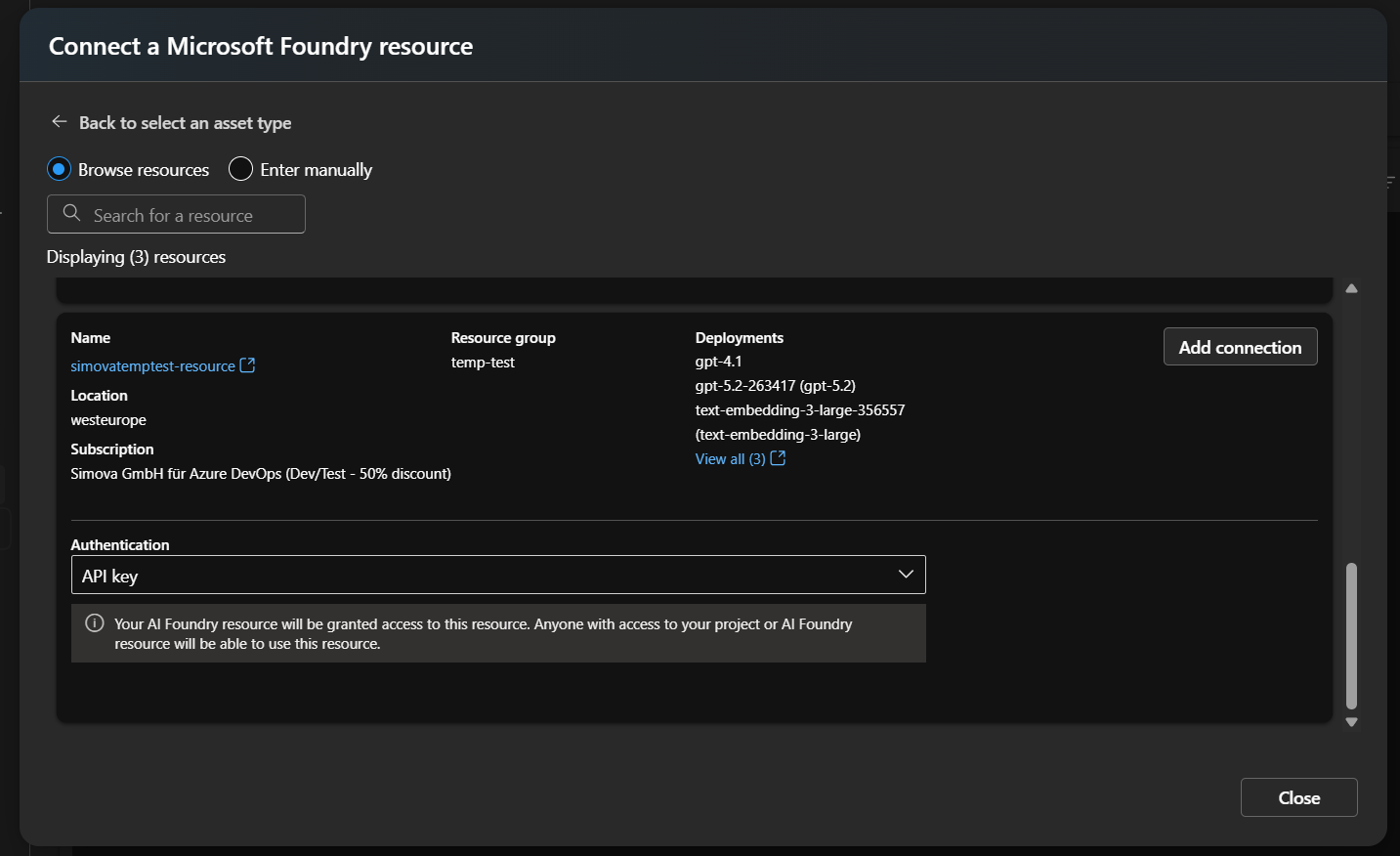
Step 6: Add Your Resource
Your newly created Azure OpenAI resource will appear in the list. Click Add to connect it.
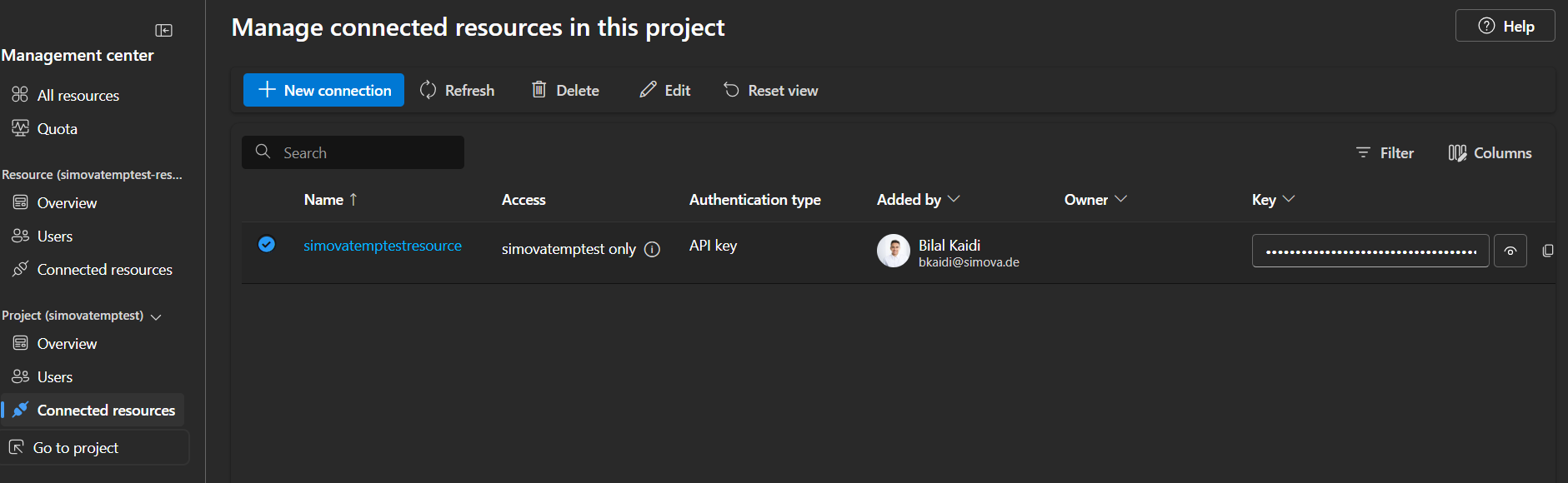
Step 7: Verify the Connection
Your resource should now be listed under Connected Resources. The Azure OpenAI resource is successfully linked to your Foundry project.
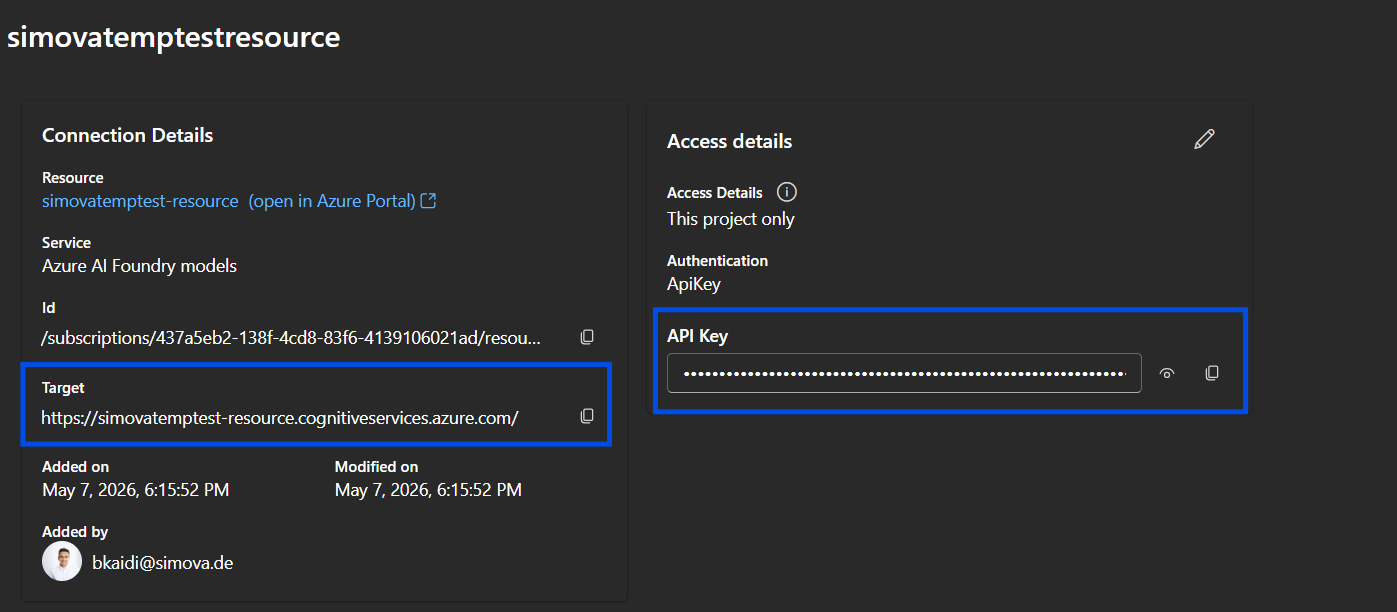
Step 8: Retrieve Your Credentials
To find your credentials, navigate as follows:
- Open the Management center (bottom-left corner of your Foundry project)
- Go to Connected Resources
- Click on your newly added Azure OpenAI resource to open it
You will find the values needed for your Business Central AI Service setup:
| Field | Description |
|---|---|
| Target | The service endpoint URL |
| API Key | The authentication key |
Part 3: Deploy an AI Model
Before you can use the service, you need to deploy an AI model.
Step 9: Navigate to Models & Endpoints
In the left-hand navigation of the Foundry Hub, click on "Models + endpoints".
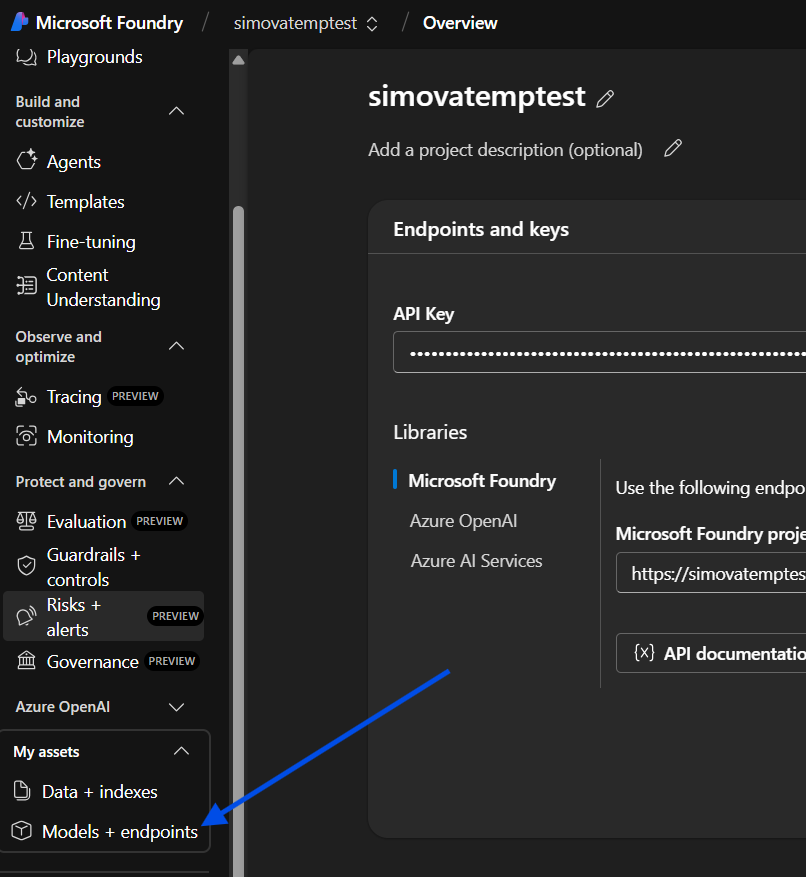
Step 10: Deploy a Model
Click "Deploy Model", select the model you want to use for the CORE AI Service, and click Deploy.
Model recommendation
Always choose the latest available model version for the best performance and accuracy.
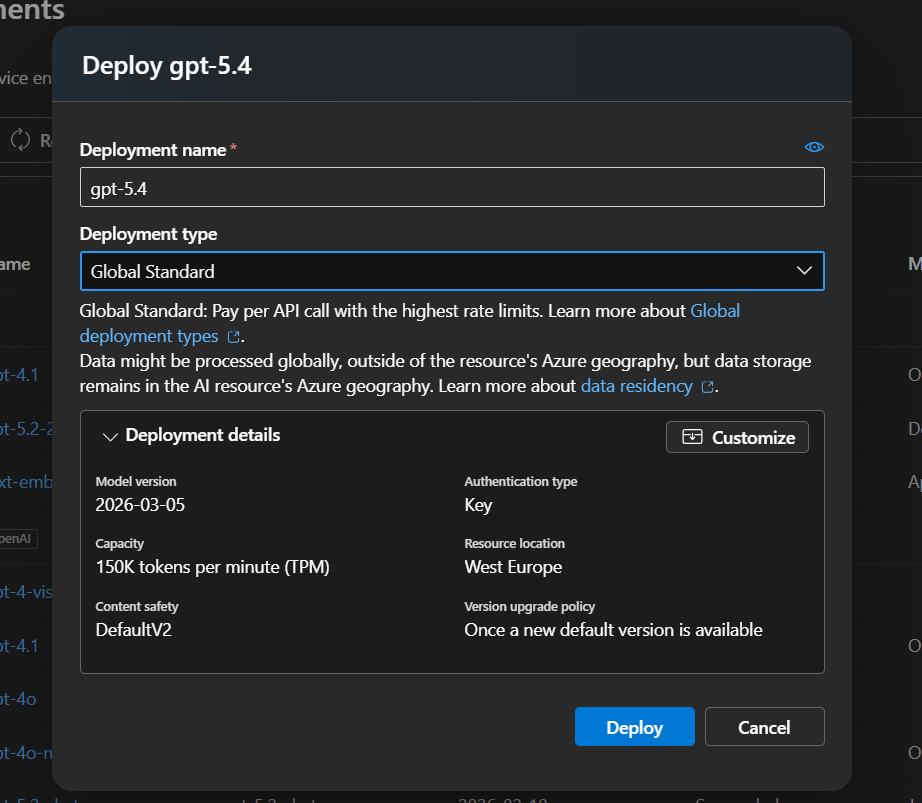
Attention
When manually deploying an AI model, select a Standard pay-as-you-go deployment type, such as Global Standard or Data Zone Standard. Do not select a Provisioned Throughput deployment unless dedicated, continuously billed capacity is explicitly required.
Provisioned Throughput Units (PTUs) are billed hourly, even when the model is not in use.
Azure Cost Management budgets provide notifications only and do not automatically stop consumption.
Final Configuration in Business Central
Once the model is deployed, enter the following three values into your Business Central AI Service configuration:
| BC Field | Source |
|---|---|
| Target Endpoint | From the Connected Resource → Target |
| API Key | From the Connected Resource → API Key |
| Model Name | The name of the model you just deployed |
That's it: you're ready to go!
Important: Validation Limitation
The Business Central AI Service validation cannot determine whether your resource is correctly configured: it can only verify that the resource exists.
Always test your full process end-to-end after setup to confirm everything works as expected.